What opacity should a watermark be?
We suggest 40 to 60% opacity, and checking the mark on your own photo. In our measurements, a black mark over a light grey or a white mark over a dark grey reached a contrast ratio of 2.8:1 to 4.0:1 at 40 to 50% opacity.
Published . Drafted with AI assistance and checked against the sources linked on this page. How we write our guides.
Best watermark opacity for a photo
The right opacity depends on what is behind the mark, and the colour of the mark matters too. We measured both. We placed a white mark and a black mark at 20 to 70% opacity over flat greys of different brightness and worked out how far the marked pixels differ from the unmarked ones, using the contrast ratio from WCAG 2.2 as a yardstick. The ratio runs from 1:1 (no difference) to 21:1.
The table shows the result for the two ends and the middle of our range of backgrounds. A grey of relative luminance 0.05 is dark, 0.2 is mid-dark and 0.9 is light.
| Opacity | White on dark (0.05) | Black on dark (0.05) | White on mid-dark (0.2) | Black on mid-dark (0.2) | White on light (0.9) | Black on light (0.9) |
|---|---|---|---|---|---|---|
| 20% | 1.81 | 1.22 | 1.41 | 1.44 | 1.02 | 1.61 |
| 30% | 2.42 | 1.33 | 1.65 | 1.73 | 1.04 | 2.09 |
| 40% | 3.13 | 1.44 | 1.92 | 2.12 | 1.04 | 2.80 |
| 50% | 3.98 | 1.55 | 2.25 | 2.56 | 1.05 | 3.87 |
| 60% | 4.97 | 1.67 | 2.57 | 3.07 | 1.06 | 5.58 |
| 70% | 6.10 | 1.76 | 2.93 | 3.67 | 1.07 | 8.11 |
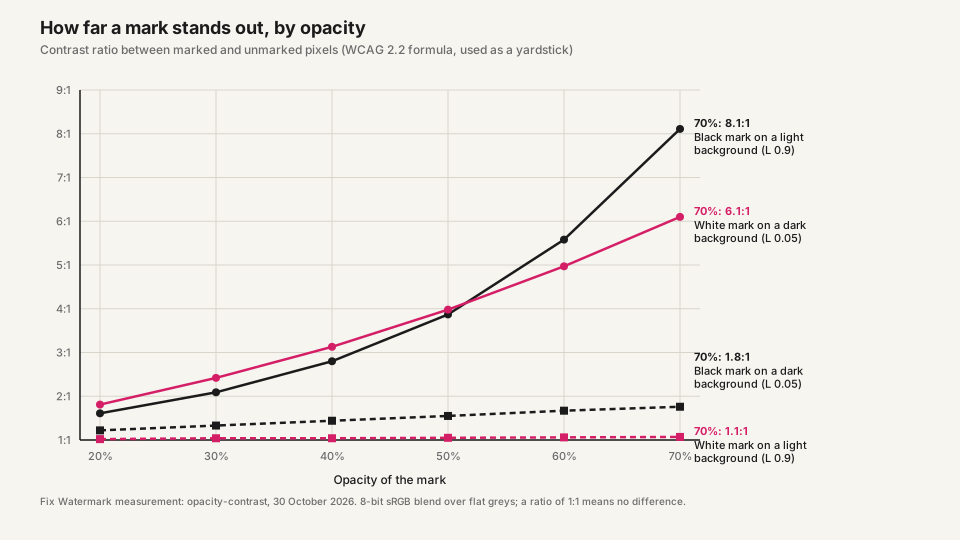
Standard watermark opacity: the range we suggest
We found no standard that sets a watermark's opacity, so this is our advice, with the data as the reason. We suggest 40 to 60%.
- At 40%, the matching colour (black over our light grey, white over our dark grey) already reaches 2.8:1 to 3.1:1. To reach 3:1 as a reference line (not a standard for watermarks), a black mark needs 43% over the light grey and a white mark needs 39% over the dark grey.
- At 60%, the same pairs reach 5.0:1 to 5.6:1. Past that the mark stands out more, and our data does not measure how much a stronger mark distracts from the picture, so that part is for your eye.
- At 20%, the best pair in our table reaches 1.81:1, and over the mid-dark grey both colours are under 1.5:1.
Our tool's Opacity (%) slider runs from 0 to 100 and starts at 50, which sits inside this range. Try it in the photo watermark tool and look at the preview on your own picture.
White, black or outlined watermark
The colour has to suit the background. Over a light grey of relative luminance 0.9, a black mark reaches 1.61:1 at 20% opacity and 8.11:1 at 70%, while a white mark reaches only 1.02:1 and 1.07:1. Over a dark grey of 0.05 it is the reverse: a white mark reaches 1.81:1 at 20% and 6.10:1 at 70%, and a black mark only 1.22:1 and 1.76:1.
Three limits are worth knowing from the same data:
- A white mark never reaches 2:1 over a grey of luminance 0.6 or lighter, even at full opacity, and over 0.9 it does not reach 1.5:1.
- A black mark cannot get past about 2:1 over a grey of luminance 0.05, even at full opacity.
- Over a mid-dark grey of 0.2, white and black are close at 40%: 1.92:1 for white and 2.12:1 for black. Over a grey of 0.4 at 40%, black gives 2.47:1 and white 1.45:1.
So a photo with both bright and dark areas is the hard case. Adobe's Lightroom desktop offers text watermarks in black or white only (Adobe), which matches the two colours we tested. Our tool also has an Outline option and a Soft shadow switch for text, and the help text of Soft shadow says it helps text stay readable on busy pictures; we did not test either one, so the numbers above do not cover them.
Watermark logo opacity
A logo behaves like a mark of its own colours, and we tested only white and black. As a rough guide we also ran the same marks over three test photos, cutting each into a 3 by 3 grid of regions. These are generated test images, not real photographs. The median of the nine regions, for a black mark: 2.57:1, 2.52:1 and 2.10:1 at 40% opacity, and 6.05:1, 5.69:1 and 3.63:1 at 70%. For a white mark: 1.32:1, 1.37:1 and 1.90:1 at 40%, and 1.61:1, 1.73:1 and 2.91:1 at 70%. The average brightness of the 27 regions runs from 0.07 to 0.62.
Our reading: a one-colour logo suits only part of a mixed photo, so choose its colour for the area where it sits. For the size of the logo, see watermark size, and for its position, where to put a watermark on a photo.
Watermark opacity in Word
Microsoft's pages for Word for Microsoft 365 (checked October 2026) give no washout percentage. The picture watermark page says that on a Mac you keep Washout checked, next to Scale with Auto selected. Its washout page points Windows users to Picture Tools > Format with Recolor, Brightness or Contrast for a picture, and to WordArt Tools > Format > Shape Fill > More Fill Colors and Transparency for text. The steps are in our guide to a watermark in Word.
Opacity controls in other apps
- Photoshop on desktop: layer Opacity runs from fully opaque down to 1% (nearly invisible). Adobe says it is inactive for Background layers and locked layers (Adobe).
- Lightroom Classic: the Opacity effect adjusts the level of transparency of the watermark (Adobe).
- PowerPoint: a picture's transparency runs from 0 (fully opaque, the default) up to fully transparent, so it is the opposite scale to opacity (Microsoft).
- Canva: select the element and use Transparency on the toolbar above the editor, by dragging the slider or entering a value (Canva).
How we measured
Inputs: white (255) and black (0) marks at 20, 30, 40, 50, 60 and 70% opacity, over flat greys of relative luminance 0.05, 0.1, 0.2, 0.4, 0.6 and 0.9. The blend is normal alpha compositing in 8-bit sRGB values, rounded. The ratio compares the marked pixels with the unmarked ones, using the WCAG 2.2 formula (L1 + 0.05) / (L2 + 0.05), where L1 is the relative luminance of the lighter of the two. We ran it in Python 3.13.2 with Pillow 12.3.0 and numpy 2.2.3. For the test photos, each is cut into nine regions and the ratio comes from the mean luminance of each region before and after the blend.
We did not test real photographs, mark shape, soft edges, outlines, shadows, JPEG re-encoding, colour marks, perceived contrast or any WCAG success criterion. A watermark is not text on a page, so we use the ratio only as a scale and make no claim that a mark meets WCAG.
Sources
Checked October 30, 2026.
- www.w3.org/TR/WCAG22
- helpx.adobe.com/lightroom/desktop/save-share-and-export/save-share-photos.html
- support.microsoft.com/en-us/word/insert-a-picture-watermark
- support.microsoft.com/en-us/word/adjust-the-washout-effect-of-a-watermark
- helpx.adobe.com/photoshop/desktop/create-manage-layers/apply-layer-effects/set-layer-opacity-and-blending-modes.html
- helpx.adobe.com/lightroom-classic/desktop/workspace/using-watermark-editor.html
- support.microsoft.com/en-us/office/graphics-visuals/make-a-picture-transparent
- www.canva.com/help/transparency
Questions
- What is the best opacity for a watermark?
- We suggest 40 to 60%, with a colour that suits the background. At 40 to 50%, a black mark over a light grey or a white mark over a dark grey reached 2.8:1 to 4.0:1 in our data.
- Is 50% a good watermark opacity?
- It is inside the range we suggest. Over a grey of luminance 0.9, a black mark reaches 3.87:1 at 50%; over 0.05, a white mark reaches 3.98:1.
- Why can't I see my white watermark?
- Over our light grey (relative luminance 0.9) a white mark stays under 1.1:1 at any opacity from 20 to 70% in our data. Use a black mark there, or a mark that suits the area behind it.
- How do I change watermark opacity in Word?
- On a Mac, Microsoft says to keep Washout checked for a picture. On Windows, it points to Recolor, Brightness and Contrast for a picture, and Transparency for text. The pages we read give no percentage.
- Does the same opacity work on every photo?
- No. The background decides the contrast. In our test photos a black mark at 40% reached between 2.10:1 and 2.57:1 in the median region, a white mark between 1.32:1 and 1.90:1.